
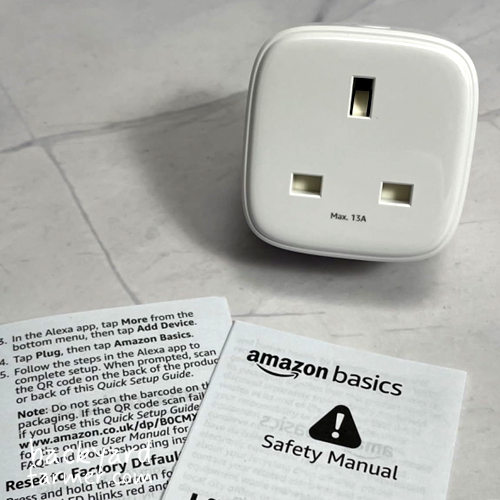
To set up an Amazon Smart Plug, plug it into an indoor wall socket and follow the instructions in the Alexa app. Amazon’s automatic setup may find it immediately, but you can also add it manually in a few minutes.
This guide covers the genuine UK Amazon Smart Plug, model HD34BX. Amazon Basics, Matter-enabled and third-party plugs may use different lights, ratings and reset instructions.
About this guide: I worked as a PC technician for six years and have worked with code since 1999. I have used that technical background alongside Amazon’s current UK guidance to keep these instructions accurate, practical and clear about what the plug can and cannot do.
Amazon Smart Plug Setup: The Quick Version
- Check that the plug is model HD34BX.
- Plug it directly into a suitable indoor wall socket.
- Open the latest version of the Alexa app and sign in to your Amazon account.
- Enable Bluetooth and location services on your phone.
- Follow the setup message if Alexa automatically discovers the plug.
- If it is not found, select Devices > + > Add Device > Plug.
- Scan the setup barcode if requested.
- Give the plug a clear name and test it through the app.
You do not need an Echo to set up or control the plug. An Echo or another Alexa-enabled device is only required for hands-free voice commands.
Before You Start
Have the following ready:
- The latest version of the Alexa app.
- An Amazon account signed into the app.
- A working 2.4GHz Wi-Fi network.
- Bluetooth and location services enabled.
- Phone power-saving or low-power mode temporarily switched off.
- The setup barcode on the plug or in its Quick Start Guide.
- A dry indoor wall socket within reliable Wi-Fi range.
Allow any relevant permissions requested by the Alexa app. The exact wording may differ between Android and iOS.
Do You Need to Switch Off 5GHz Wi-Fi?
The UK Amazon Smart Plug connects to 2.4GHz Wi-Fi, but you should not normally need to switch off the 5GHz band. Most dual-band routers can continue broadcasting both frequencies while the plug connects to 2.4GHz.
Only consider temporarily separating the bands if setup repeatedly fails and your router is preventing the plug from joining the 2.4GHz network.
Check the Model Number
Look for HD34BX on the plug’s label. Amazon’s UK safety information rates this model at 240V, 50Hz and 10A maximum.
Do not use US instructions or guidance written for a newer Amazon Basics plug. Different models can have different electrical ratings, indicator lights and reset methods.
Automatic Setup With Wi-Fi Simple Setup
Amazon’s Wi-Fi Simple Setup can connect compatible devices using Wi-Fi details already saved to your Amazon account.
To try automatic setup:
- Update and open the Alexa app.
- Sign in to the Amazon account associated with the plug.
- Enable Bluetooth and location on your phone.
- Temporarily switch off phone power-saving mode.
- Plug HD34BX directly into an indoor wall socket.
- Follow the setup message if the plug appears in Alexa.
- Name and test the plug once registration is complete.
Automatic discovery depends on Wi-Fi Simple Setup being enabled and compatible network details being saved to your Amazon account. If no setup message appears, add the plug manually.
How to Set Up an Amazon Smart Plug Manually
Amazon’s current manual setup route is:
Devices > + > Add Device > Plug
The exact position of the icons may change as the Alexa app is updated, but the basic process remains the same.
- Plug the Amazon Smart Plug into an indoor wall socket.
- Open the Alexa app.
- Select Devices.
- Tap the + symbol and choose Add Device.
- Select Plug. Choose Amazon if the app asks for a brand.
- Scan the setup barcode when requested.
- Follow the Wi-Fi and registration instructions shown by Alexa.
- Give the plug a clear name when setup finishes.
The setup barcode is on the back of the plug or in the original Quick Start Guide. Keep the whole code visible, use good lighting and hold the phone steady.
Do not scan the ordinary retail barcode from the packaging. If the setup code is missing or will not scan, select the manual or Don’t have a barcode? option in the app. The wording can vary between versions.
Place the Plug in Pairing Mode
If Alexa asks you to place HD34BX in setup mode:
- Press and hold the Action button for five seconds.
- Release it when the light starts blinking red and blue.
- Return to the Alexa app and continue the setup.
This places the plug in manual pairing mode. It is not a factory reset.
Restart, Pair or Factory-Reset?
These actions perform different jobs. A failed automatic discovery does not usually justify immediately factory-resetting the plug.
| Action | What to do | Result |
|---|---|---|
| Restart | Unplug the smart plug, wait briefly and reconnect it. | Restarts the plug without deliberately removing its registration. |
| Pairing mode | Hold the Action button for 5 seconds until red and blue blink. | Makes HD34BX available for manual setup. |
| Factory reset | Hold the Action button for 12 seconds. Release it when the light turns red, then wait for blue. | Clears the existing setup so the plug can be registered again. |
Current Amazon factory-reset instructions for HD34BX use red and blue lights. Instructions telling you to wait for an orange light may apply to a different model.
If the correct pairing and reset steps do not work, move to the dedicated Amazon Smart Plug troubleshooting guide. It is better to check one possible cause at a time than repeatedly reset the plug or change several router settings together.
Name and Test Your Amazon Smart Plug
Complete a few checks before relying on the plug for a routine or schedule.
Check That the Appliance Restarts
Smart plugs work best with simple appliances that have a mechanical on/off switch and resume when their electricity supply returns.
You can test this before connecting the appliance:
- Switch the appliance on.
- Unplug it from the wall.
- Plug it back in.
- Check whether it starts without another button press.
If the appliance remains off, the smart plug cannot make it start automatically.
Passing this test only confirms that the appliance can resume after losing power. It does not mean that operating it remotely or unattended is safe.
Choose a Clear Name
Replace a generic name such as “First Plug” with something short and distinct:
- Desk Lamp
- Seedling Light
- Living Room Lamp
- Christmas Lights
Avoid giving several devices very similar names. Clear naming makes voice commands easier and reduces the chance of Alexa controlling the wrong appliance.
Test Each Control Method
- Use the physical button on the side of the plug.
- Test the on/off control in the Alexa app.
- If you own an Echo, say: “Alexa, turn on [device name].”
You can also add the plug to a room through Devices > + > Add Group. This allows one Alexa command to control several compatible devices in the same room.
What Can You Use With an Amazon Smart Plug?
HD34BX is best suited to simple, low-risk appliances that safely resume when power returns. Staying below the 10A rating does not automatically make every appliance suitable.
| Appliance or use | Suitability | What to check |
|---|---|---|
| Mechanically switched lamps | Good choice | Confirm that the lamp comes back on when power returns. |
| Indoor seasonal lights | Usually suitable | Keep connections indoors and dry. Check that any controller also resumes. |
| Grow lights | Conditional | Check the actual input rating and restart behaviour. Do not rely on a cloud routine as the only control for critical lighting. |
| Fans | Conditional | Only use where supervised operation is safe and the manufacturer permits supply switching. |
| Air purifiers | Conditional | The appliance must restart safely when power returns. |
| Kettles, toasters and cooking appliances | Avoid | Heat, boiling water and unattended operation create unnecessary risks. |
| Portable heaters | Do not use remotely or unattended | Amazon specifically warns against unsupervised operation of heaters. |
| Aquarium and pet equipment | Avoid as the only controller | Internet or routine failures could affect animal welfare. |
| Outdoor equipment | Not suitable | HD34BX is an indoor plug and is not weatherproof. |
Essential Safety Limits
- Use the plug indoors and in a dry location.
- Keep it within Amazon’s stated operating range of 0–35°C.
- Keep it away from sinks, splashes, damp areas and heat sources.
- Plug it directly into a wall socket.
- Do not connect it through an extension lead or power strip.
- Do not exceed 240V, 50Hz or 10A.
- Check the appliance’s rating label and manufacturer instructions.
- Stop using damaged equipment or anything becoming unusually hot.
- Never use it where an unexpected start could cause harm.
Amazon warns against using the plug with equipment where continuous or unsupervised operation could be dangerous, including stoves, heaters and fans.
How to Set an Amazon Smart Plug Schedule
Schedules are created using Alexa Routines. There is no separate schedule stored directly on HD34BX.
To create a time-based routine:
- Open the Alexa app and select More > Routines.
- Tap + to create a routine.
- Add an event or trigger.
- Select Schedule.
- Choose the time and days.
- Add an action.
- Select Smart Home and choose your Amazon Smart Plug.
- Choose On or Off.
- Save and test the routine.
The labels may appear as When, When this happens, Add action or Alexa will, depending on the app version.
If you want a lamp to switch on at 7am and off at 9am, create one routine for switching it on and another for switching it off.
Sunrise and Sunset Routines
Alexa can use sunrise and sunset as routine triggers. These are useful for indoor lamps and seasonal lighting because the time automatically changes through the year.
Check that the home location saved in Alexa is correct before relying on them.
Change or Delete a Routine
Open More > Routines > Your Routines and select the routine. You can edit its trigger and actions, temporarily disable it where the app provides that option or use its menu to delete it.
Will Routines Work Without the Internet?
Amazon does not clearly guarantee how HD34BX behaves during an internet outage, whether a missed routine runs later or which state the plug returns to after a power cut.
Do not use an Alexa routine as the only controller for crop-critical lighting, heating, irrigation, ventilation, aquarium equipment or anything else where a missed cycle could cause harm.
Amazon Smart Plug Features and Limitations
HD34BX is a straightforward on/off controller rather than a complete energy-management device.
- Alexa control: Use the Alexa app or a compatible Alexa voice device.
- No Echo required: An Echo is only needed for hands-free voice commands.
- No separate hub: The plug connects using 2.4GHz Wi-Fi.
- Alexa Routines: Create timed, sunrise and sunset automations.
- Alexa only: Amazon does not list Google Home, Apple Home or Matter support.
- No energy monitoring: It does not show live wattage or appliance usage history.
- Automatic updates: Amazon device software updates automatically while connected.
- Indoor use only: HD34BX is not weatherproof.
- Unconfirmed power-cut behaviour: Do not assume it will restore its previous state or replay a missed routine.
Will an Amazon Smart Plug Save Energy?
A smart plug can save energy if its schedule genuinely reduces how long an appliance runs or remains on standby. It does not automatically reduce electricity use simply because it is installed.
HD34BX also consumes a small amount of electricity itself. Amazon lists approximately 0.88W in networked standby and 0.23W in its lowest-power mode.
It can therefore be useful for lighting or equipment that would otherwise be left running unnecessarily. It offers less benefit where the appliance already has an effective timer or uses almost no standby power.
Frequently Asked Questions
No. You can set up and control HD34BX through the Alexa app. An Echo or another Alexa-enabled device is only required for hands-free voice control.
No. HD34BX connects to 2.4GHz Wi-Fi. A dual-band router can normally continue broadcasting both 2.4GHz and 5GHz during setup.
Check that Bluetooth and location are enabled, phone power-saving mode is temporarily off and a working 2.4GHz network is available. Hold the Action button for five seconds until red and blue blink to start manual pairing.
If Alexa still cannot find it, follow the complete Amazon Smart Plug troubleshooting guide.
Current UK instructions for HD34BX use red and blue lights during pairing and factory reset. Orange-light instructions may refer to another model.
Do not use HD34BX to start or run a portable heater remotely or unattended. Amazon specifically warns against equipment that could become dangerous during continuous or unsupervised operation.
No. HD34BX can switch the power supply on and off, but it does not provide live wattage or appliance-consumption history.
No. HD34BX is intended for dry indoor locations. Use a properly rated outdoor smart plug where the plug or connection will be exposed to outdoor conditions.
Amazon does not clearly guarantee offline routine behaviour for HD34BX. Use a suitable local controller or backup where timing is important.
Final Check
Your Amazon Smart Plug is ready once it responds to the physical button and Alexa app, safely controls an appliance that restarts when power returns and completes a tested routine.
Keep the plug indoors, stay within its 10A rating and avoid appliances that could become dangerous if they start unexpectedly or continue running unattended.
If everything is working and you want to get more from it, see the best ways to use an Amazon Smart Plug around the home. If it later becomes unresponsive, use the dedicated troubleshooting guide rather than repeatedly resetting it.