

If your Amazon Smart Plug has stopped responding, do not factory-reset it straight away. Start by checking whether the problem is the wall socket, connected appliance, Alexa or the plug itself. A few simple checks will usually identify the fault without wiping the setup.
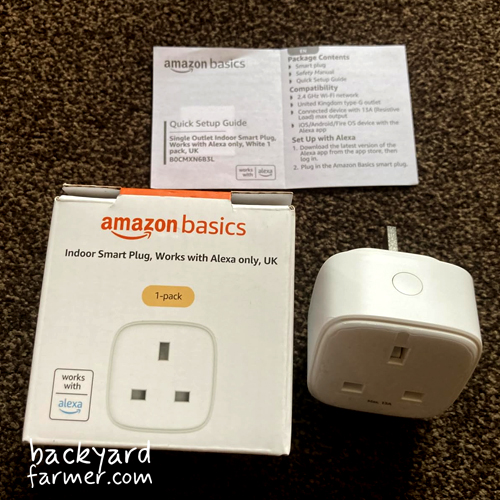
Model note: This guide covers the genuine Amazon Smart Plug model HD34BX sold in the UK. Amazon Basics, Matter and third-party Alexa-compatible plugs may use different lights, ratings and reset procedures.
Try These Checks First
Work through these before changing router settings or removing the plug from Alexa:
- Check the wall socket. Test it with a small known-working appliance or lamp.
- Check the connected appliance. Plug it directly into the wall and confirm that its own power switch is left on.
- Press the Smart Plug’s side button. If this works, the fault may be with Alexa or Wi-Fi.
- Try the Alexa app. If app control works, focus on the voice settings rather than resetting the plug.
- Check other Alexa devices. If several have failed together, look at the router, internet connection or Alexa service before resetting individual plugs.
- Restart the Smart Plug. Unplug it and plug it back in.
- Factory-reset only if the simpler checks fail. A reset clears the existing setup and the plug must be registered again.
Safety warning: Stop using the plug if it is unusually hot, buzzing, cracked, discoloured, sparking or smells of burning.
Quick Amazon Smart Plug Troubleshooting Table
| Symptom | First check | Likely next step |
|---|---|---|
| No light and no response to the side button | Test the wall socket, then try a second known-working socket | If it remains dead, contact Amazon; a reset cannot help without power |
| Side button works but Alexa says “unresponsive” | Check app control, your internet and other Alexa devices | Restart the plug; reset only if it remains offline |
| Plug appears on but the appliance stays off | Test the appliance directly and check its own switch | Try a simple suitable lamp; escalate if the plug supplies no output |
| Alexa cannot find or connect to the plug | Check Bluetooth, location, the Alexa app and 2.4GHz Wi-Fi | Try manual setup; factory-reset if discovery still fails |
| Red and blue are blinking | The plug is in manual setup mode | Complete setup in the Alexa app |
| Blue blinks after a reset | The factory reset has completed | Register the plug again in Alexa |
| The plug keeps disconnecting | Check whether one or several devices are affected | Restart the affected equipment; reset once if the problem continues |
| A routine or schedule does not run | Confirm app control works and the routine is enabled | Check the plug, trigger, action, days, time and location |
Amazon Smart Plug Not Responding or Stopped Working
An “unresponsive” message does not automatically mean the plug has failed. The next step depends on whether it still has power and responds to its physical button.
No Light and the Side Button Does Nothing
Test the wall socket with a known-working lamp or other small appliance, then try the Smart Plug in a second confirmed working socket. If there is still no light or button response, move to Amazon support or replacement. Repeated resets will not help a completely dead plug.
If the wall socket itself appears faulty, stop using it and have it checked by a qualified electrician.
The Side Button Works but Alexa Says It Is Unresponsive
Try the Alexa app and check whether other Alexa devices are online. If several have failed together, the router, internet connection or Alexa service is more likely than several plugs failing at once.
If only this plug is affected, unplug and reconnect it, then try the app again. Reset only if restarting does not restore the connection.
The Plug Is On but the Appliance Stays Off
Test the connected appliance directly from the wall and check its own power switch. Some electronic appliances do not automatically resume after their power supply is interrupted, even when the Smart Plug turns back on correctly.
If possible, test the Smart Plug with a simple, suitable lamp. If the plug shows as on but supplies no power to a confirmed working test load, treat it as a probable plug fault.
Amazon Smart Plug Not Connecting or Alexa Cannot Find It
If Alexa cannot discover the plug, check the setup conditions before resetting anything:
- Update the Alexa app through your phone’s app store.
- Enable Bluetooth and location services on the phone.
- Temporarily turn off the phone’s low-power or battery-saving mode.
- Confirm that 2.4GHz Wi-Fi is available. The HD34BX does not use 5GHz, but a normal dual-band router can usually remain enabled.
- Make sure the paired Alexa device and the Smart Plug use the same Wi-Fi network.
- During discovery, keep the paired Alexa device within Amazon’s stated 30ft (9m) of the Smart Plug.
In the Alexa app, use:
Devices > + > Add Device > Plug
Follow Frustration-Free Setup if it appears. If Alexa asks for a barcode, check the back of the plug and the Quick Start Guide.
For manual setup, restart the plug and then hold the Action button for five seconds until the LED blinks red and blue. Return to Alexa and complete the on-screen steps.
If Alexa still reports “No new devices found”:
- Restart the plug once.
- Recheck Bluetooth, location, phone power-saving mode and 2.4GHz Wi-Fi.
- Complete the official factory reset below and try setup again.
- If one correct reset and setup attempt fail on a known-working network, contact Amazon rather than changing several router settings.
Static IP addresses, QoS, forced 802.11n and Wi-Fi channel changes are not part of Amazon’s standard Smart Plug setup instructions and can create wider problems.
How to Restart and Reset an Amazon Smart Plug
Restarting and factory-resetting are different. Always try the restart first.
Restart It First
Unplug the Smart Plug from the wall, reconnect it, then retest the side button and Alexa app. There is no need to time a 30-second wait.
Factory-Reset the Plug
Follow the sequence carefully:
- Press and hold the button for 12 seconds.
- Release it when the LED turns red.
- Wait for the LED to blink blue, confirming that the reset is complete.
- Register the Smart Plug again in the Alexa app.
Once it has been re-added, check its name, room or group and any routines that used it. They may need updating to point to the newly registered device.
You can also check the latest Amazon UK reset instructions.
What the Red and Blue Lights Mean
Amazon’s UK instructions provide only a few clear, model-specific light states, so avoid guessing beyond them.
| Light behaviour | Verified meaning or action |
| Red and blue blinking after a five-second button hold | Manual setup mode; continue in Alexa |
| Red during a 12-second button hold | Release the button as part of the factory-reset sequence |
| Blue blinking after the red reset stage | The reset has completed; register the plug again |
A red light should not be described solely as a wrong Wi-Fi password. Red also forms part of the official reset sequence.
Current UK instructions for HD34BX do not use an orange light for setup or reset. If another guide tells you to wait for orange, it may concern an older instruction, a different model or a third-party Alexa-compatible plug.
Amazon Smart Plug Keeps Disconnecting or Failed After a Router Change
One plug dropping offline points towards its location, setup or hardware. Several devices failing together suggests a router, internet connection or Alexa service problem.
If you recently changed the router, network name or Wi-Fi password, the Smart Plug may still hold the old network details. Factory-reset it and register it on the new 2.4GHz network.
Check the Wi-Fi signal at the outlet with another device before buying an extender or changing settings. Combined network names, band steering and mesh Wi-Fi can complicate setup, but they are not automatically incompatible.
After an outage, wait until the router is fully online and restart the Smart Plug once. If it keeps dropping off a strong network after one correct reset and re-registration, contact Amazon rather than repeatedly changing router settings.
App Control Works but Alexa Voice Commands Do Not
If the plug works from the Alexa app, do not reset it. The problem is more likely to involve Alexa’s device name, group or voice control.
Check the following:
- Use the exact device name shown in Alexa.
- Make sure the plug does not share its name with a room, group or another device.
- Remove any duplicate entry left after a previous reset.
- Confirm that the correct Amazon account or household profile is active.
- If only one Echo device is affected, restart that Echo.
Use a distinct name such as “Grow Light” or “Desk Lamp” rather than “Plug”.
Amazon Smart Plug Routine or Schedule Not Working
First check whether the plug works manually in the Alexa app. If it does not, fix the connection before changing the routine.
The current route for creating or editing routines is:
More > Routines > +
Work through these checks:
- Confirm that the routine is enabled. If necessary, switch it off and back on.
- Check that the correct Smart Plug is selected.
- Check the event or trigger, the on/off action, selected days and time.
- Check the Alexa device location for sunrise, sunset or location-based routines.
- If the plug was reset and re-added, make sure the routine does not still point to the old device entry.
- Recreate the routine only after checking the existing settings.
If several unrelated routines fail together, check for a wider Alexa or network interruption before rebuilding them.
Amazon does not clearly guarantee how routines for this UK model behave during an internet outage. If a schedule is important for lighting, heating, irrigation or ventilation, do not rely on an undocumented offline response.
Safety and Using the Plug With Grow Lights
The UK Amazon Smart Plug HD34BX is rated at 240V AC, 50Hz and 10A maximum. Amazon’s UK safety guidance says it should be used indoors, in dry locations and directly in a wall outlet rather than an extension lead or power strip.
Keep the connected equipment within the plug’s rating, but do not treat 10A as blanket approval for every appliance below a simple wattage calculation. Motors, heating elements and some power supplies can behave differently when they start.
For a grow light, check the fixture’s actual input rather than its model name or claimed equivalent wattage. Test whether it safely resumes after power is interrupted; some electronic controls stay off until a button is pressed again.
I would not use an internet-dependent routine as the only control for crop-critical lighting, heating, irrigation or ventilation. A suitable standalone timer or local backup provides protection if the connection fails.
If you are choosing a fixture for an indoor setup, see my guide to the best LED grow lights for indoor gardens.
Stop using the Smart Plug immediately if it becomes excessively hot, buzzes, cracks, discolours, produces a burning smell, smokes or sparks. Do not open it or attempt an internal repair.
When the Amazon Smart Plug Has Probably Failed
It is time to stop troubleshooting when:
- There is no LED or side-button response in two confirmed working wall sockets.
- The plug indicates that it is on but supplies no output to a suitable known-working test load.
- The official red-to-blue reset sequence never completes.
- Correct setup repeatedly fails on a known-working 2.4GHz network.
- The plug keeps dropping offline after one verified reset and re-registration.
- There is physical damage, excessive heat, buzzing, discolouration, a burning smell, smoke or sparking.
Amazon publishes a one-year limited warranty for HD34BX. When contacting Amazon product support, have the purchase date, model number, LED behaviour, recent router changes and steps already tried ready.
A failed Smart Plug is electrical waste and should not go in the general bin. Use a local small-electrical collection, retailer take-back scheme or household recycling centre. Recycle Your Electricals has a UK postcode locator.
Frequently Asked Questions
Do I need an Echo to use an Amazon Smart Plug?
No. You can set up and control the plug through the Alexa app using an Amazon account. An Echo or another Alexa-enabled voice device is only needed for hands-free voice commands.
Does the Amazon Smart Plug work with 5GHz Wi-Fi?
HD34BX uses 2.4GHz Wi-Fi. A normal dual-band router can remain enabled, so most people do not need to switch off 5GHz.
Why does another guide say the Amazon Smart Plug should blink orange?
Current Amazon UK setup and reset instructions for HD34BX use red and blue. Orange instructions may concern another model, older information or a third-party Alexa-compatible plug.
Will the Amazon Smart Plug work without the internet?
The physical side button remains available, but remote app control and cloud-dependent Alexa features need connectivity. Offline routine behaviour is not guaranteed for this UK model.
What happens after a power cut?
Wait for the router to reconnect fully, then restart the plug if necessary. Amazon does not clearly document which on/off state HD34BX restores in the UK, so do not assume important equipment will resume automatically.
Does HD34BX work with Google Home, Apple Home or Matter?
The legacy Amazon Smart Plug should be treated as Alexa-only. Newer Amazon Basics or Matter-labelled products are separate models and can have different compatibility.
Does the Amazon Smart Plug monitor energy use?
No user-facing energy monitor is listed for HD34BX, so it should not be presented as a power meter. Amazon’s published figures give its own consumption as 0.88W in networked standby and 0.23W in off/low-power mode.
Can I update the Smart Plug’s firmware manually?
Amazon says Smart Home device software updates automatically while the device is online. Updating the Alexa app on your phone is separate and can help during setup or discovery.
Still Not Working?
If one restart, one correct factory reset and one setup attempt on a known-working network have failed, contact Amazon product support.
If the plug is damaged, unusually hot or completely dead in confirmed working sockets, disconnect it and replace or recycle it rather than continuing to reset it.